
Making videos is no easy task, it is a long process. You plan, shoot, edit and still end up wishing it looked a bit better. That’s why more creators and marketers are turning to Veo 3. By writing short prompts, they can skip the hard work and get videos that look polished in a matter of minutes.
The way Veo 3 works is very simple. You just need to give a short description such as “a coffee cup on a bright desk with morning light,” this creates a smooth video that looks professional. You don’t need cameras, no editing software, just words that guide the result.
This is the reason why Veo 3 prompts are becoming a useful tool for marketers, small business owners and creator. These make it easy to test ideas, produce quick ads or share stories without the usual cost and effort.
In this guide, we’ll look at how it works, share examples you can copy, and explain how to use it for real campaigns.
What is Veo 3 and how can it turn words into videos?
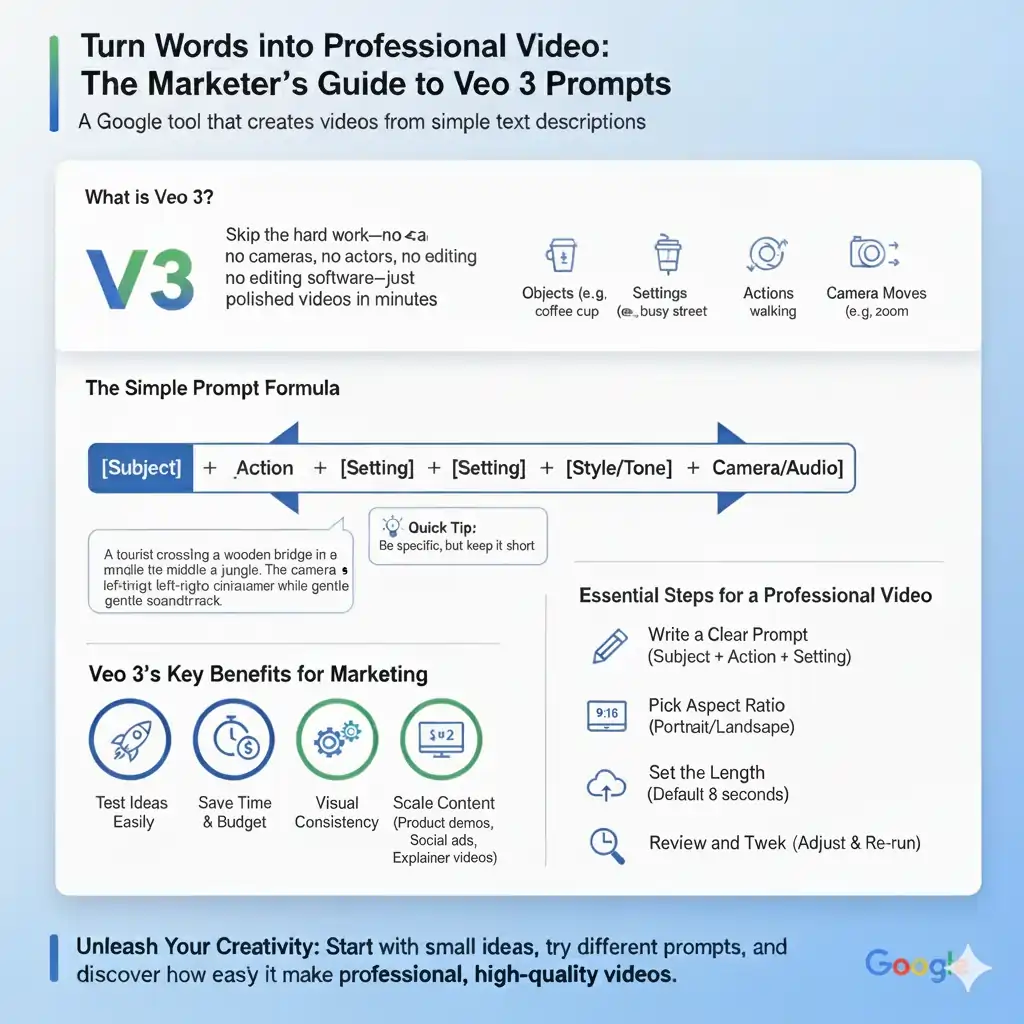
Veo 3 is a tool made by Google that has the ability to create videos from text. You don’t require a camera, actors, editing software. All you need to do is type a description, and Veo 3 builds a video that matches it.
It understands details in your words, such as:
- Objects you want to show (like a coffee cup, a laptop, or a car).
- Settings you describe (a busy street, a calm beach, or an office desk).
- Actions you mention (walking, pouring coffee, or typing on a keyboard).
- Camera moves like zooming in, panning, or tilting.
Using Veo 3 prompts is part of what’s known as prompt engineering. The idea is very simple; the clearer your words are, the better the response will be. Marketers and creators often use prompt engineering frameworks to shape style, tone and pacing. This means you can guide Veo 3 to make videos that fit brand needs without trial and error.
How does Prompting Veo 3 work in simple steps?
Creating Veo 3 prompts is simple once you are familiar with the basics. Veo3 responds best when the instructions are short, clear and structured.
Here’s how it works step by step:
- Step 1: Write what you want to see in easy and plain words.
- Step 2: Add details about the setting, mood or action.
- Step 3: Include camera moves or music if needed.
- Step 4: Paste the text in Veo 3 and generate.
- Step 5: Review the video, then edit or adjust the prompt for better results.
A good prompt often follows this easy formula:
[Subject] + [Action] + [Setting] + [Style or Tone]
Example
“A tourist crossing a wooden bridge in the middle of a jungle. The camera moves from left to right in a cinematic manner while a gentle soundtrack is playing.”
Clear instructions such as this make Veo 3 give results that match your idea more closely. The key is being specific without making the sentence long.
Why should marketers care about Veo 3 prompts?
Marketers are constantly searching for new and inventive ways to engage their audience. With these Veo 3 prompts marketers are now able to create professional videos with spending a lot of money on production.
Key benefits for marketing teams
- Campaign ideas can be easily tested.
- Visuals stay consistent across platforms.
- Teams can save time and budget.
In short, Veo 3 prompts open the door for marketers to scale content creation while keeping it creative and cost-effective.
Google Veo 3 tutorial: What are the must-know steps for beginners?
These steps keep things simple. Follow them in order and you will have a clean first video in no time.
Step 1: Sign in and check access
- Sign in with your Google account or open the Gemini app on mobile or web.
- Video generation may require a Gemini plan or API access depending on your region and account.
Step 2: Start a new video project
- Select the video option in the prompt bar or choose a blank video project.
- Don’t forget to pick the length and basic layout before you start writing the prompt. The model often produces short clips (default is selected at 8 seconds).
Step 3: Pick aspect ratio and resolution
- Choose portrait (9:16) for reels or short social clips, or landscape (16:9) for YouTube.
- Newer updates support vertical videos and higher resolution settings for social use.
Step 4: Write a clear prompt using a simple formula
- Use: Subject + Action + Setting + Style + Camera/Audio.
- Keep each idea short. Add camera motion or mood in one line. Example: “A small bakery counter, baker placing fresh bread on a tray, warm morning light, slow push-in, soft piano music.”
Step 5: Add assets if you want (image to video or uploads)
- You can even upload a photo to animate or add logos and reference images.
- This helps keep brand elements and gives the model concrete visual cues.
Step 6: Generate a preview and review
- Hit generate and watch the preview.
- Look for timing, camera moves, and audio sync. If a scene feels off, tweak the prompt and regenerate.
Step 7: Lock or re-run specific scenes
- Lock good scenes to keep them while you change other parts.
- Use prompt rewriting or scene-level edits to fine tune details without starting over.
Step 8: Export with the right settings for the platform
- Export in the aspect ratio and file format your platform needs.
- If you plan to post on YouTube Shorts, note platform rules and generated-content labels.
Quick tips to avoid common beginner mistakes
- Always be specific but keep the sentence short.
- Call out camera moves as well as timings.
- Don’t give all the instructions in a single prompt rather give small prompts and don’t give a single prompt too many unrelated ideas.
- Save every prompt that works so you can reuse it.
Best Veo 3 examples that show strong results
The strength of Veo 3 depends on how clear your prompts are. Adding details about subject, setting, action, and mood makes the final video feel more polished.
Here are a few examples that show how strong prompts can change results:
- Product Showcase
Prompt: “Close-up of a luxury wristwatch on a black velvet surface. Camera pans slowly to highlight shiny metal and moving gears. Soft spotlight lighting with gentle classical music in the background.”
Why it works: The details focus attention on the product and give it a high-end feel.
- Lifestyle / Social Video
Prompt: “Vertical video of a young woman smiling as she prepares a smoothie in a bright kitchen. Camera follows her as she pours it into a glass. Text overlay: ‘Fresh Start.’ Cheerful pop music plays.”
Why it works: Designed for social platforms, this example feels personal and shareable.
- Racing car
Prompt: “A cinematic shot of a red Formula One race car driving on a professional track”. Before switching to a first-person perspective from the driver’s seat as they pass another car, the camera angles change from a wide shot of the car and track to a close-up of the back wheels, capturing the extreme speed and the spray of sparks.
Source: Google AI Studio
How can Veo 3 be used to create marketing videos?
Marketing teams often require fresh content, but producing video from scratch is no easy task and can also drain your time and budget. Google’s Veo 3 make this easier by turning short prompts into ready-to-use clips.
Ways marketers can use Veo 3
- Product demos: You can show features without hiring actors or filming in studios.
- Social media ads: Generate vertical videos customized for your social media accounts such as Instagram or YouTube Shorts.
- Explainer clips: Use clear prompts to create simple, animated explainers that highlight key services.
- Brand storytelling: Build short story videos that connect with audience emotionally.
Why it works
- Videos can be created faster as compared to traditional shoots.
- Teams can test multiple creative ideas in a matter of minutes
- Costs are lower while maintaining quality.
With the right prompts, Veo 3 can help brands stay consistent, creative, and visible across all marketing channels.
10 Professional Veo 3 Prompts for Marketers
Writing longer as well as precise prompts helps Veo 3 understand what exactly you want. The more details you add about subject, setting, action and mood the better the results. Here are 10 ready-to-use Veo 3 prompts written in a simple way so you can see how they work in different areas.
Product Launch
"Create a video of a shiny smartphone place on a black glass table. The screen light up with colorful animations as the camera slowly rotates around it. Soft neon lights glow in the background. Close-up shots highlight the smooth design. Futuristic background music plays with a gentle electronic hum."
Fitness Ad (Energy & Motivation)
"A runner bends down to tie his shoes on a city bridge at sunrise. The camera zooms in as they start sprinting with energy. Sweat shines on their face while the sky glows orange. Sounds of the footstep’s echoes on the pavements. Motivational music plays in background."
Food Promotion (Restaurant/Brand)
"A burger sizzling on a hot grill with smoke coming rising slowly. The chef adding spices on the burger patty. The camera moves close to show melting cheese dripping over the patty. The chef adds fries alongside the burger as sauces are dripping from the burger. Warm lights make the food look rich and tasty. Background sounds of kitchen chatter and soft jazz music play."
Travel Experience (Scenic)
"Over a clear blue beach with palm trees swaying in the breeze, a drone flies. People are seen walking on the sand as the shot moves across the water. The sun is shining on a clear sky. In the background, gentle waves gently crash. The sound of an acoustic guitar creates a serene atmosphere."
Luxury Product Showcase
"A glass perfume bottle with golden liquid stands on a smooth white surface. The perfume is surrounded by mist and the camera circles slowly. Light reflects off the glass creating a glowing effect. A close-up shows the shining perfume cap opening. Soft piano music creates a classy mood."
Corporate Explainer (Professional)
"An animated character stands in a bright office with floating icons around them. Icons show charts, emails, and a calendar. The character points to each one while text labels appear. The background is clean and simple with blue and white tones. A friendly voiceover explains while upbeat corporate music plays."
Lifestyle / Social Media Clip
"A young woman can be seen smiling in her kitchen in a vertical video. She fills a clear glass with a smoothie and drinks it. "Fresh Start Today" is displayed boldly in the text overlay. The scene is made warmer by the sunlight coming in through the window. In the background, cheerful pop music is playing."
Event Teaser (Concert/Festival)
"The crowd jumps to the beat at a night concert with flashing lights. The camera pans across cheering fans holding glow sticks. A DJ stands on stage with bright visuals behind them. Hands rise into the air as confetti falls. Fast-paced EDM music and clapping fill the scene."
Educational Content (Science Explainer)
"A 3D animation shows planets moving around the sun. Labels appear next to each planet as they orbit slowly. The background is dark space filled with glowing stars. A calm narrator explains the solar system. Soft ambient music plays to keep the focus on learning."
Real Estate Marketing
"A drone smoothly enters a modern glass house through open doors. The shot glides through a bright living room with large windows. Then the drone along with the camera moves into the kitchen room and then outside near the pool area. Sunlight makes the room look fresh as well as inviting. Gentle background music and natural sounds play softly."
Conclusion
Google Veo 3 makes video generation easier for anyone, from beginner to marketers. With the correct Veo 3 prompts anyone can shape videos that look professional without spending time as well as precious money on shoots and editing. The key to writing the best prompt is adding enough detail so that the tool knows exactly what you desire.
It doesn’t matter if you need a product ad, a short lifestyle video, or a simple explainer. With Veo 3 prompts, you can choose the style, mood, and sound.
Begin with small ideas, try different prompts, and you’ll see how easy it is to make videos that people enjoy.
