
Type ‘Nano Banana’ in your browser.
Upload your photo, type a prompt in nano banana, and watch the change happen.
That is all you need to edit a photo. Google Gemini 2.5 flash image generator works fast, keeps every detail sharp, and makes prompts act like a quick button for new images as well as edits.
The result depends on the words you type. Write a random prompt, and you may get messy results, but with the right one, your edit will look clean, natural, and useful.
And the best thing about Nano Banana is that you can shape results even better by following simple prompt engineering frameworks. These frameworks help you write cleaner prompts that give steady, reliable outputs.
Today, I will share 17 Nano Banana prompts that work every time. However, some of these prompts are for fresh image generation, and others are for edits. Each prompt is created to save time while getting realistic. Each prompt is built to save time and keep results realistic. results. You can use these prompts with other AI image editing tools or with the Google Nano Banana directly.
How do you Fine-Tune Technical Details for Better Nano Banana Results?
Small changes in prompts can completely change the output quality. Instead of just asking the tool to “edit” or “fix,” adding clear technical details makes your images look sharper, cleaner, and more professional. Think of it like guiding a photoshoot the clearer your instructions, the better the result.
When refining Nano Banana prompts, keep these in mind:
- Always be specific about lens type, angles and lighting instead of leaving it all to AI.
- Choose the right aspect ratio for your image so that there is no need for cropping.
- Repeat color and texture language if you want multiple edits to look consistent.
- Use simple words: short and clear terms work better than long descriptions.
What Camera Settings Give Sharper Outputs?
Camera terms can make a big difference in realism. For example:
- A wide lens (24 mm) creates space and make objects feel dynamic.
- A portrait lens (85 mm) keeps face proportional natural.
- Adding “f/1.8 aperture” or “shallow depth of field” makes the subject stand out while background is blurred.
These small tips guide Nano Banana to view the scene like a real camera would.
How do you pick the right aspect ratio for each use?
Aspect ratios set the frame for your image before edits even start.
- 1:1 (square): Best for Instagram posts and profile photos.
- 16:9 (wide): Works for YouTube banners or website hero sections.
- 3:4 (portrait): Good for stories, posters, or ads.
If you don’t clarify aspect ratio you might end up cropping, which will ruin composition.
How do colors, lighting, and textures keep images natural and consistent?
If you are making a series of images, keeping the same style in your nano banana prompts greatly matters. If one image looks warm and the other looks cold, the set just falls off, doesn’t it?
To fix this, reuse the same color terms like “muted earth tones” or “bright neon hues.” Keep lighting same, like “sunlight from the right” or “soft studio light.”
Textures also play a big role in your nano banana prompts. Without them, results may look too smooth or completely fake. Details like “fabric weave” for clothes, “matte skin,” or “soft freckles” make edits look more realistic. Using the Google Gemini 2.5 flash image generator with steady color, light, and texture keeps results natural and consistent.
How can you Balance Ethics and Avoid Strange Errors in AI images?
Respecting rules and keeping edits clean makes outputs safer and more useful. A few things help:
- Don’t use faces of real people without permission.
- Avoid copying styles too closely from artists.
- Add notes like “balanced facial features” to stop distortions.
- Use terms like “clean background, no artifacts” for smoother results.
- Keep prompts short and clear to reduce mistakes.
The Google Gemini 2.5 flash image generator follows these details well, giving images that look sharp and stay safe to use.
Nano Banana Prompts for Image Effects
Creating visuals is all about controlling textures, lighting, and perspective to change each image vivid as well as realistic. From realistic portraits to playful chibi dolls or cinematic 3D figures every detail matters. With the Google Gemini 2.5 flash image generator, you can design Nano Banana action figures, knitted dolls, capsule toys, or even Ghibli-inspired art with sharp detail and a polished finish. A few image generation prompts are given below.
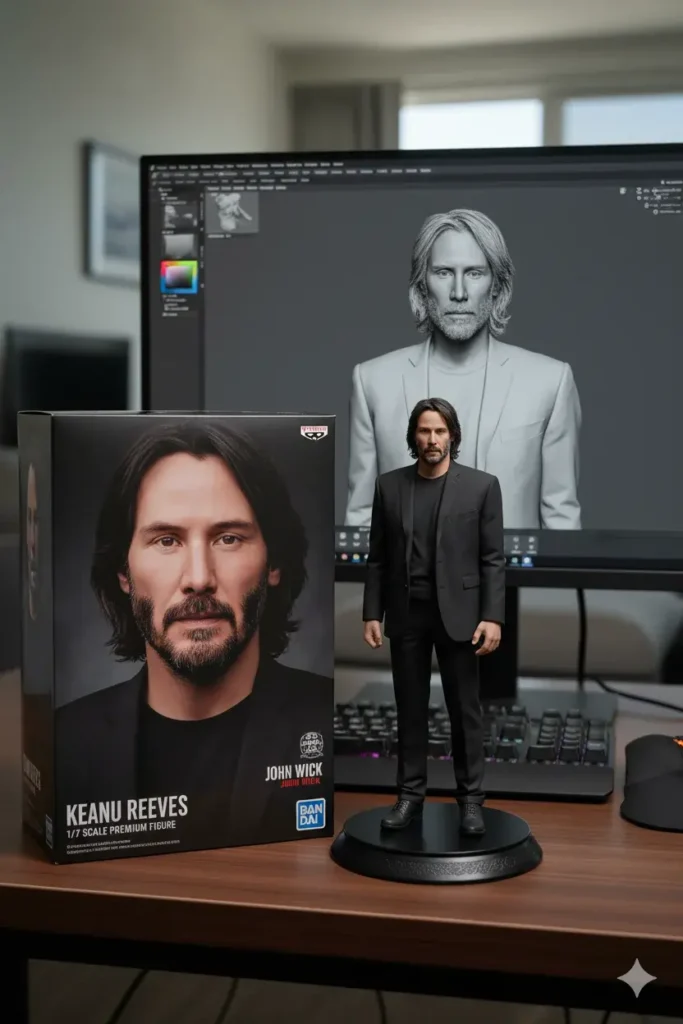
3D Action Figure
"You are an expert in image generation. You need to create a 1/7 scale figure of (provided Image), crafted with huge realistic detail and place on a commercial display. There figure is placed on a clean circular base, sitting on a computer desk. On the monitor show the ZBrush sculpting process of the figure. There is a glossy BANDAI style toy box with the original artwork. Balanced lighting highlights the figure’s clothing, hair, and small details, making it look ready for commercial release."
Chibi Knitted Doll
"As an expert in image generation a close-up shot of a hand knitted chibi style doll crafted with soft, multicolored yarn that gives rich texture and warm tones. the doll is place in two hands. the hands holding the doll are natural and gentle with clearly visible finger positions and natural skin texture. The background shows a wooden table top with sunlight coming in, blurred for a warm and cozy feel. The photo looks natural, with fine skin details on the hands and a friendly, comforting mood."
Character Capsules
"As an expert in image generation create a transparent gashapon capsule holding a miniature (Your figure) in their signature pose. Inside the figure shows the clothing with neat folds, small accessories like [bag, glasses, or weapon], and a background element such as [stage, stadium, or lecture hall] to match their style. The capsule top is transparent while the base is colored with (royal blue, gold, or red) and decorated with small patterns related to the character. Lighting should be cinematic, with strong highlights and soft shadows. The overall look should feel like a collectible toy, with photorealistic detail, natural reflections, and soft bokeh blur. Use a square 1080x1080 format for balance."
iPhone Selfie
"As an expert in image generation. You need to create a selfie that looks ordinary and it has been taken without planning. The angle is slightly awkward, the frame feels unbalanced, and the lighting is uneven with small patches of overexposure from indoor lights or sunlight. Add a hint of motion blur to give it a natural, imperfect feel. This scene shows the person with friends at nigh near (location) keeping the look plain and realistic, like a shot accidentally taken while pulling the phone from a pocket."
Chibi Emoji Sticker
"You are professional in image generation create a set of Chibi emoji stickers with big expressive eyes and soft rounded line. Each pose should be playful and exaggerated. Winking while making a peace sign with both hands. Crying cutely with tearful eyes and trembling lips. Arms open wide for a warm hug. Sleeping on a small pillow with a sweet smile. Pointing forward confidently with shiny effects around. Blowing a kiss with floating hearts. The background for each should be same and it should be bright red with stars and colorful confetti for decorations while leaving some clean white space around the edges. Use a 9:16 aspect ratio for a neat sticker looks."
Ghibli Style
"A soft, cinematic Ghibli-style scene of in a natural setting. The background shows highly green trees, drifting clouds, and warm sunlight shining through. The character design should have gentle outlines, expressive eyes, and clothing that moves lightly in the breeze. Colors should be rich but soft, giving a hand-painted look. Add subtle details like birds flying or leaves floating to enhance the animated mood. The result should feel like a still frame from a Studio Ghibli film, warm and full of life."
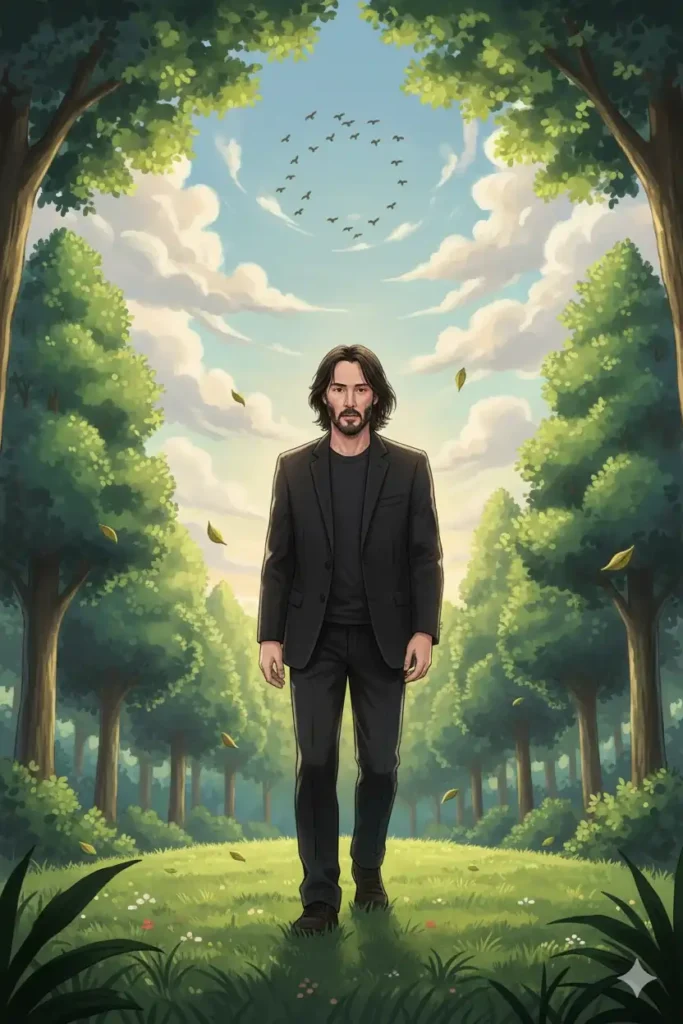
Image Fusion: Combine Multiple Images
"Create a single scene by combining [Image1], [Image2], and [Image3]. Make sure that every subject remains unique and appears properly shaped, free of distortion. To make everything seem to go together, arrange the perspective, lighting, and shadows. The finished picture should blend smoothly and naturally and be realistic, sharp, and high-resolution."
Style Fusion Prompt
"Take the subject from [Image1] and change its look into the style of [Image2]. Keep the subject’s shape, pose, and main details from the first image. Add the colors, textures, and artistic feel of the second image. The result should be high-quality, with smooth lines and consistent details."
Virtual Outfit Change
"Use the person in [Image1], but swap their clothing with the outfit shown in [Image2]. Keep the same face, body, and pose from the first image. Apply the fabric colors, folds, and textures from the second image naturally, so it looks realistic and matches the scene. The result should be sharp, clean, and detailed."
Nano Banana Prompts for Portrait Editing
Portrait editing is not just about fixing small mistakes. It is about keeping the photo natural while adding polish. With tools such as Google Gemini 2.5 flash image generator, you can refine skin, change lighting or even change expressions without making the subject look fake. Clear prompts make the edit sharp, realistic and consistent across all portraits.
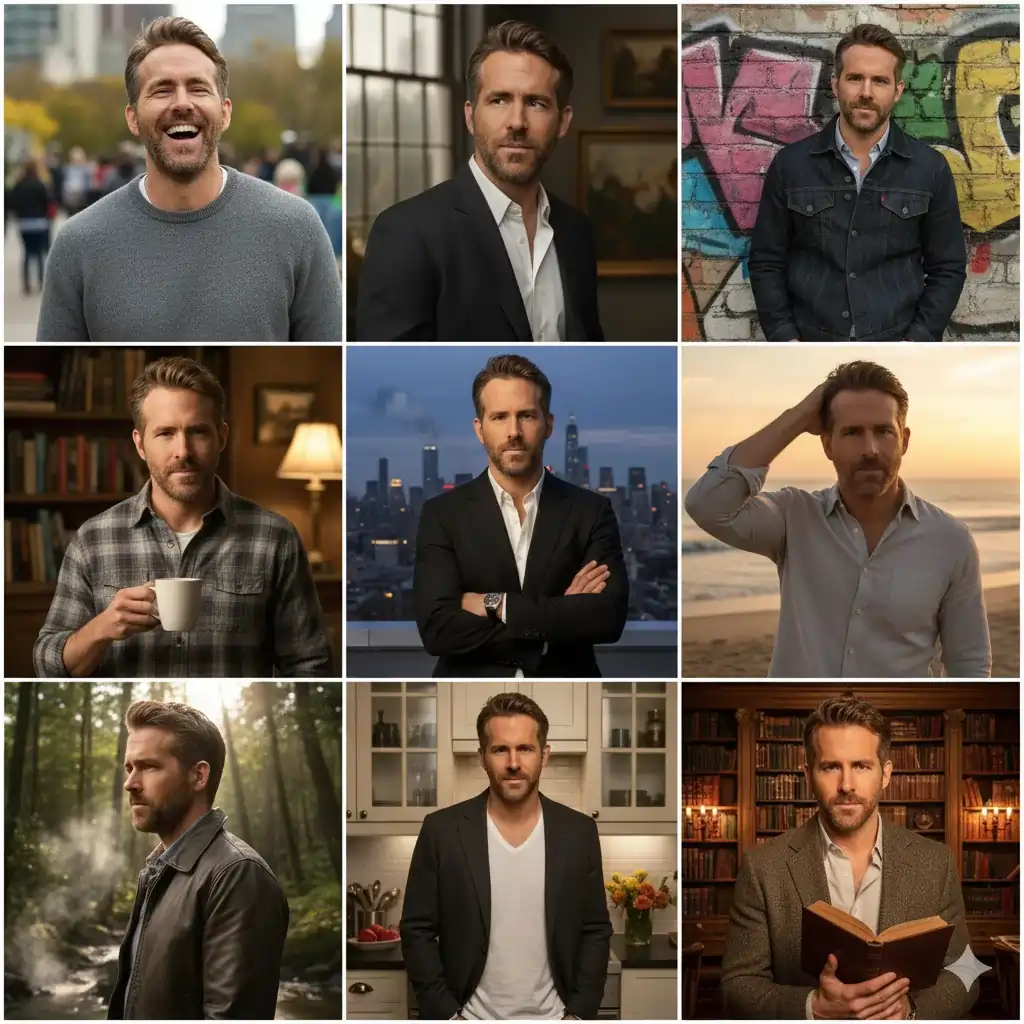
Multi-Pose Portrait Grid
"As an expert in image generation, you need to generate a set of 9 portraits using (Uploaded image) as subject. Each portrait should show the subject in different pose and expressions with a unique and realistic background. Make sure all of the images are of consistent size, natural lighting, and minor details such as hair strands and clothing folds. Each portrait should be different but should keep the subject recognizable. High-resolution output for professional use."
Pose Replication
"Place [SUBJECTS] in the precise position shown in [REFERENCE IMAGE]. Maintain clothing details, facial features, and body proportions. To make the pose appear natural in the new setting, adjust the lighting and shadows. The finished product ought to have a realistic feel, as though the subjects were captured in that precise pose."
Nano Banana Prompts for Image Editing
Editing an image helps you improve or change the image while keeping it realistic. With the Google Gemini 2.5 flash image generator, you can adjust lighting, swap backgrounds, change poses, or even add objects. Clear prompts make sure edits look natural, detailed, and professional every time.
Background Replacement
"Swap the background of (Image 1) with (New background). Background could be (urban street, beach or forest.) Keep the main subject untouched while keeping the body proportions, lighting and minor details. Make sure the subject blends naturally with the new scene, matching shadows and angle. Output should be photorealistic."
Lighting and Mood Swap
"Change the lighting in (image 1) to match the mood, such as soft sunset, bright daylight or moody indoor lighting. Keep the subject’s colors, shadows, and textures consistent while blending the scene naturally. High-resolution, photorealistic result."
Text Editing in Image
"Change the text in [IMAGE1] to “[NEW TEXT]” while keeping all other elements intact. Match the original font style, size, and color so the edit looks natural. Maintain background textures and lighting to make the text fit."
Object Addition or Removal
"Add [OBJECT] to [IMAGE1] and position it naturally in the scene, matching the lighting, shadows, and perspective. Or remove [OBJECT] cleanly without leaving traces or affecting the surrounding elements."
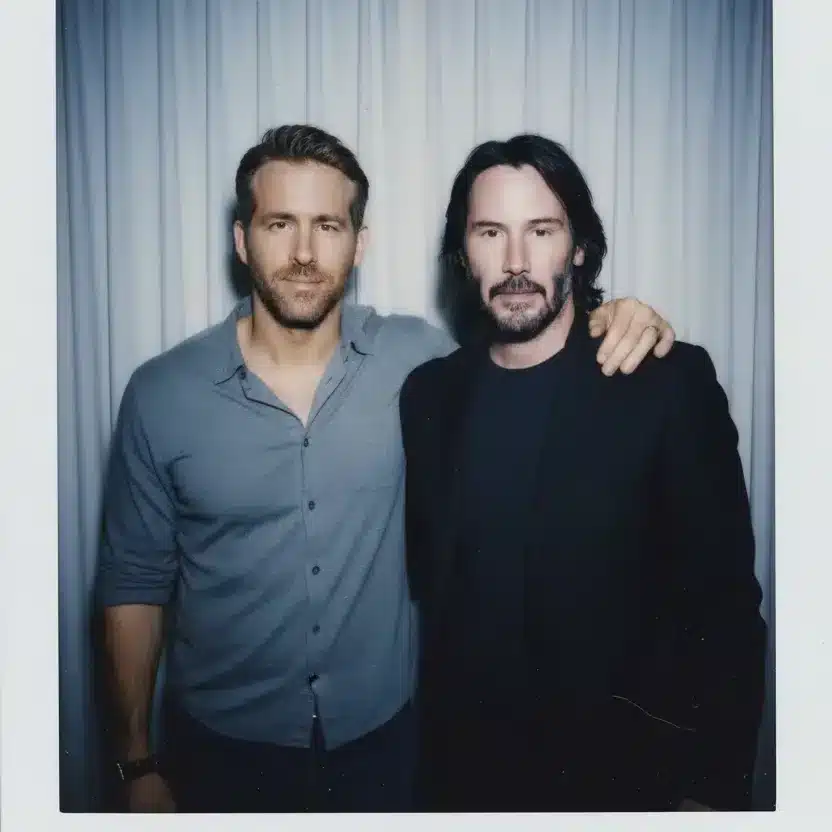
Polaroid-Style Snapshot
"Create a Polaroid-Style Snapshot of subject that looks casual as well as natural. Keep the face same and add a slight blur and soft as if taken in a dim room with a small flash. Replace the background with [NEW BACKGROUND] (e.g., a white curtain). The final image should feel like a real instant photo, with subtle imperfections that make it authentic."
Cinematic Portrait
"Using [SUBJECT'S] natural facial features, create a vertical portrait of them. To draw attention to facial structure and details, use dramatic, cinematic lighting with sharp contrast. To highlight the posture and jawline, aim the camera up and slightly lower. To create a dramatic mood that goes well with the subject's skin tone and outfit, the background should be [COLOR / SETTING] (for example, deep red). Maintain natural features and proportions while applying a smooth, photorealistic finish."
Conclusion
Creating and editing images using nano banana prompts with Google Gemini 2.5 flash image generator makes editing and image generation much more fun. Creating 3D figures, chibi dolls, cinematic portraits, or fun stickers is easier when you use clear prompts, the AI produces crisp, realistic, and lively results. Mixing image generation with thoughtful edits lets you turn your ideas into polished visuals that look natural and professional.
Experiment, adjust and have fun with these prompts and don’t forget your creativity sets your limit.
